Podcast clip maker
Short clips from your multicam podcast, cut from your own footage.
podswitch’s AI clip maker reads your episode, suggests the moments most likely to work as short clips with a score for each, and builds them: pauses cut, the camera on whoever is talking, captions timed to the words, in vertical, square or landscape. You finish them in Final Cut Pro, Premiere Pro or DaVinci Resolve, or render an MP4 in your browser.
How do you make podcast clips with podswitch?
- 01
Record one microphone per speaker
For a multicam podcast, podswitch decides every cut from the microphones, so each speaker works best with their own mic on its own track or file. A single video-call recording or a solo video also works. Cameras can be MOV or MP4; separate audio can be WAV, AIFF, FLAC, M4A or MP3.
- 02
Make the edit
Add your files in the browser. The audio is uploaded; your video stays on your computer. podswitch syncs the files by sound and cuts the full episode from the mics.
- 03
Ask for clips
On a paid plan the episode is transcribed as soon as the edit is ready. Choose how many clips (up to 6 per request), roughly how long (10 seconds to 3 minutes) and which shapes. Optionally say what to look for, split the clips between the speakers, or pick one of the episode’s themes.
- 04
Check them and export
Each suggestion comes with its hook, the reason it was picked and a score out of 100. Preview it with your own files, change any shot or caption, then download it for Final Cut Pro, Premiere Pro or DaVinci Resolve, or render an MP4 in your browser (beta).
What does each clip include?
- Picked by AI
- Claude, Anthropic’s AI model, reads the transcript and looks for moments that stand on their own: a strong first line, one clear idea and a payoff. A later sentence can be moved to the front as the hook.
- Scored 0 to 100
- The score is the model’s judgement of how well the moment works on its own. It does not predict views.
- Pauses cut
- Silences between and within sentences are removed, so the clip keeps moving.
- Camera follows the speaker
- The person talking is on screen, with short shots of the listener when they react or reply. The cameras come from the same mic-based decisions as the full edit.
- Captions
- Timed to each word, in one of six starting styles you can adjust. Correct any word, or a line’s timing to the millisecond, before you export.
- Editable output
- Clips arrive in your editor as timelines built from your own camera files, so you can change anything. Or render a finished MP4 in the browser.
Which shapes and sizes?
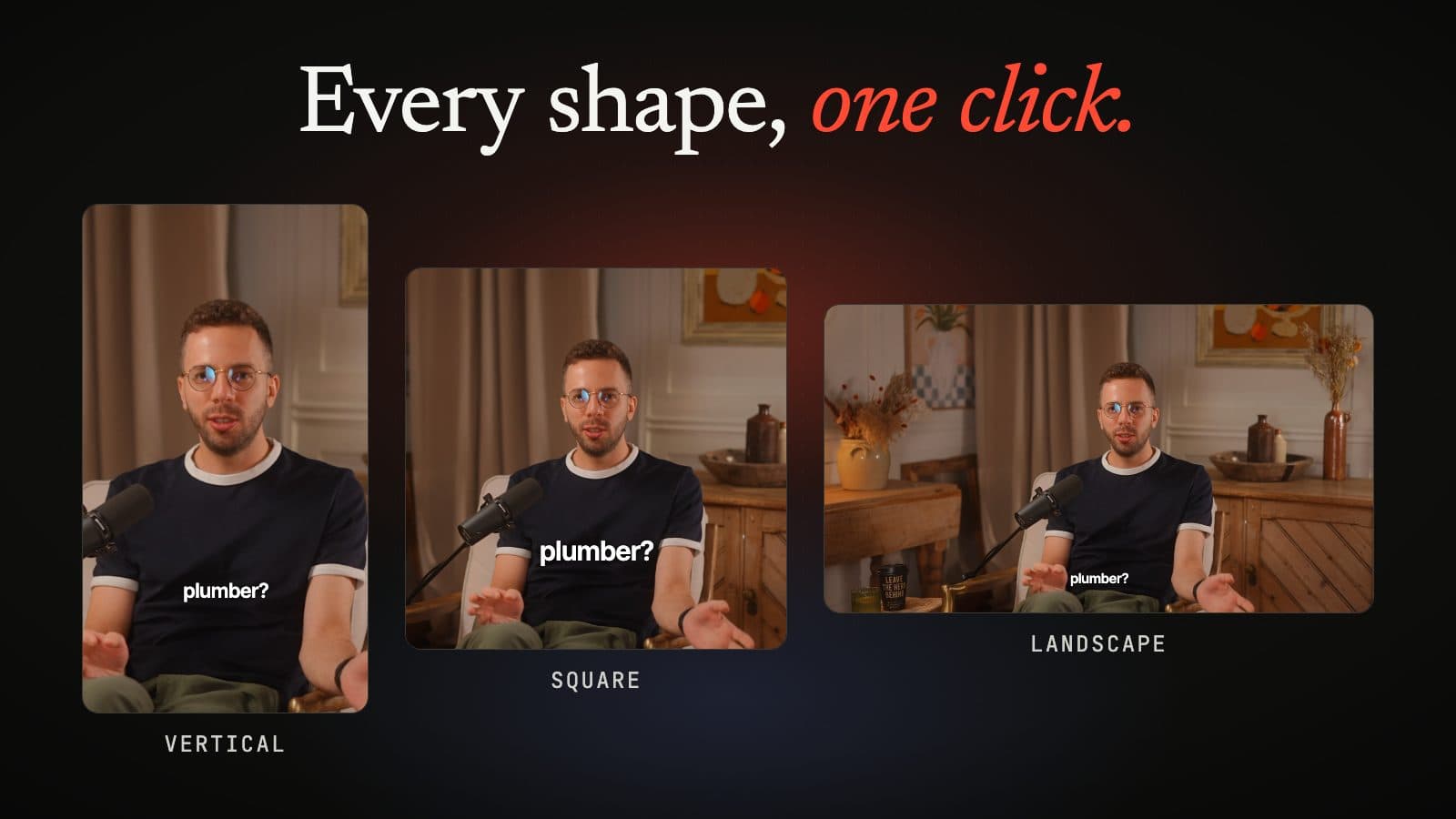
Ask for one shape or all three in the same request. Set each camera’s framing once and every clip uses it.
| Shape | Ratio | Frame size | Typical use |
|---|---|---|---|
| Vertical | 9:16 | 1080 × 1920 | Reels, TikTok and YouTube Shorts |
| Square | 1:1 | 1080 × 1080 | Feeds |
| Landscape | 16:9 | 1920 × 1080 | YouTube, LinkedIn and websites |
Platform specifications change. Our guide to podcast clip aspect ratios and lengths covers each platform in more detail.
How do the clips come out?
- Final Cut Pro: a project built from your camera files, with captions as styled titles or plain editable captions.
- Premiere Pro and DaVinci Resolve: a timeline with styled text layers or a plain SRT captions file.
- MP4 in your browser (beta): a finished video, cropped and captioned as in the preview, made on your computer from your own files. Your video is not uploaded. Needs a browser that supports WebCodecs.
Want the full tour, with the clip videos and real suggestions from one of our own episodes? See social clips.
What does it cost?
The clip maker comes with paid plans, each with a number of clips per calendar month. A single-project purchase includes clips too. The free plan and the free trial make the multicam edit without clips. Prices are in pounds sterling and include VAT.
- Premium, monthly18 clips a month
- Premium, annual30 clips a month
- MAX, monthly60 clips a month
- MAX, annual60 clips a month
Podcast clip maker questions
What is a podcast clip maker?
A tool that finds short, self-contained moments in a long podcast episode and turns them into clips for social media, usually vertical, with captions. podswitch does this for multicam video podcasts: it picks the moments from the transcript, then cuts each clip from your own camera files, switching to whoever is talking.
What do I need to make clips with podswitch?
A recording with one microphone per speaker (or a single video-call recording, or a solo video), a paid plan, and a finished podswitch edit of the episode. Clips are made from that edit, so the camera choices follow the same decisions about who is speaking. Your video stays on your computer; the audio is uploaded, not the video.
How many clips can I ask for at once?
Up to 6 clips per request, each roughly 10 seconds to 3 minutes long. You can make more requests for the same episode, within your plan’s monthly allowance. Asking for more than one shape does not make more clips: the same clips are laid out for each shape.
Can I get clips of one guest, or about one topic?
Yes. Split the clips between the speakers on a slider, ask for clips featuring a particular person, write a short brief such as “focus on the pricing story”, or pick one of the themes podswitch finds in the episode.
Is the AI clip score a prediction of views?
No. It is the model’s judgement of how well a moment stands on its own as a short clip. What you post, and when, decides how it performs. Use the score and the reason given to decide quickly which clips to check first.
Can I make a clip longer?
Yes. Turn a clip you like into a longer version, up to 3 minutes, keeping its moment and its hook. You can add an instruction in plain English, such as “start with the question”.
Does a failed request use up my allowance?
No. Clips made by a request count against your plan’s monthly allowance; a request that fails does not.
Start with the edit. Clips follow.
Try it free